Do you ever feel like AWS LAMBDA is great but they are just not enough for what you need to do? Maybe you need more horsepower, perhaps a core or two and maybe the TASK you want to do might not be done within 15 minutes? I know what you’re thinking; duh!
We have Ec2 for larger tasks and yes but do you not feel that it gets a little tricky maintaining Ec2 sometimes cause you just want a LAMBDA ON STEROIDS?
Well Ecs might just be the solution you need. Ecs works very similar to Ec2 except this is a task based solution where you
- Create Docker images
- Create Containers out of the docker images
- Define a basic layout of the sort of tasks you might be doing
- Use anything you like to initiate a task all the while replacing the original parameters that you defined your tasks with
Yes, it’s that simple.
Docker Image
Aws lets you use custom images to run your tasks on. Which means you can have your scripts or binaries or applications in the image that you want. Once built from Dockerfile, you will tag and upload this image into your AWS accounts ECR. Pretty simple to do; you can follow the official docs here.
You can also use public images available in docker hub; all you need is the tag. For this example we will use the python:3.8 image available publicly in docker hub.
Creating ECS Clusters
Once you have a docker image in your hands, head over to your AWS account and go into ECS. Then find clusters and then hit Create cluster. Follow along.
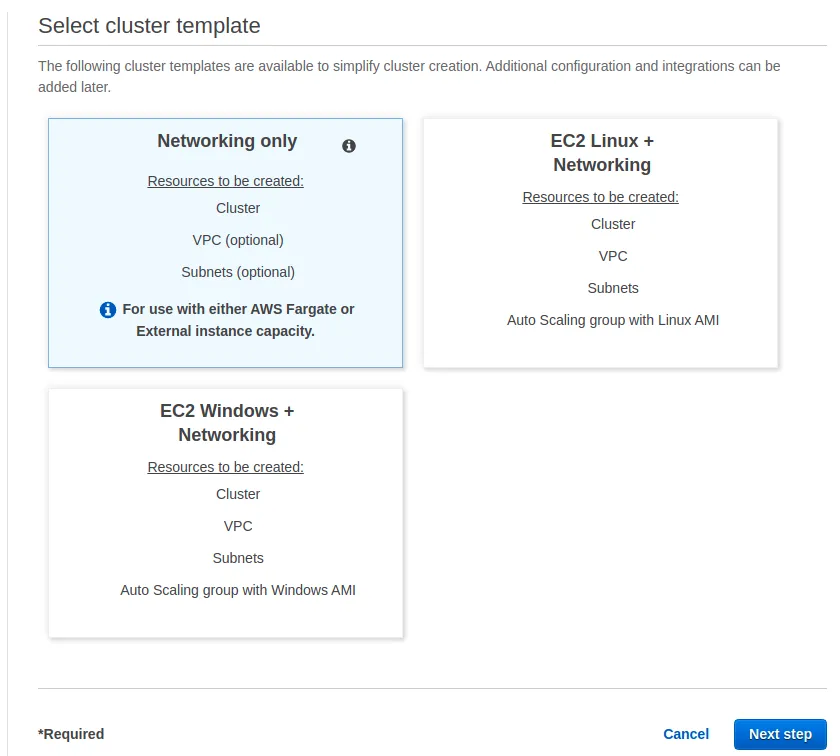
Using fargate as the cluster template
We will use the first option to use the cluster as Fargate (Serverless compute for containers) Hit Next step.
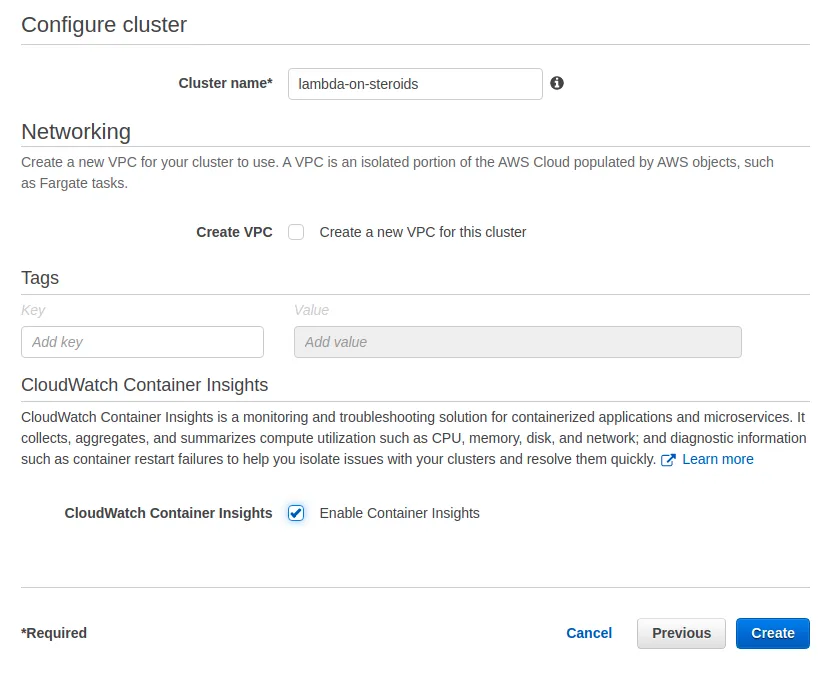
Give it a name and make sure to enable Cloudwatch insights cause they are always helpful. We are not creating a VPC because this account already has one, you can create one if you still need it. Hit Create.
Creating Task Definition
Once complete, we will create a Task definition, this will lay down the ground rules for our tasks. Find the Task Definition option from the sidebar and hit Create new Task Definition.
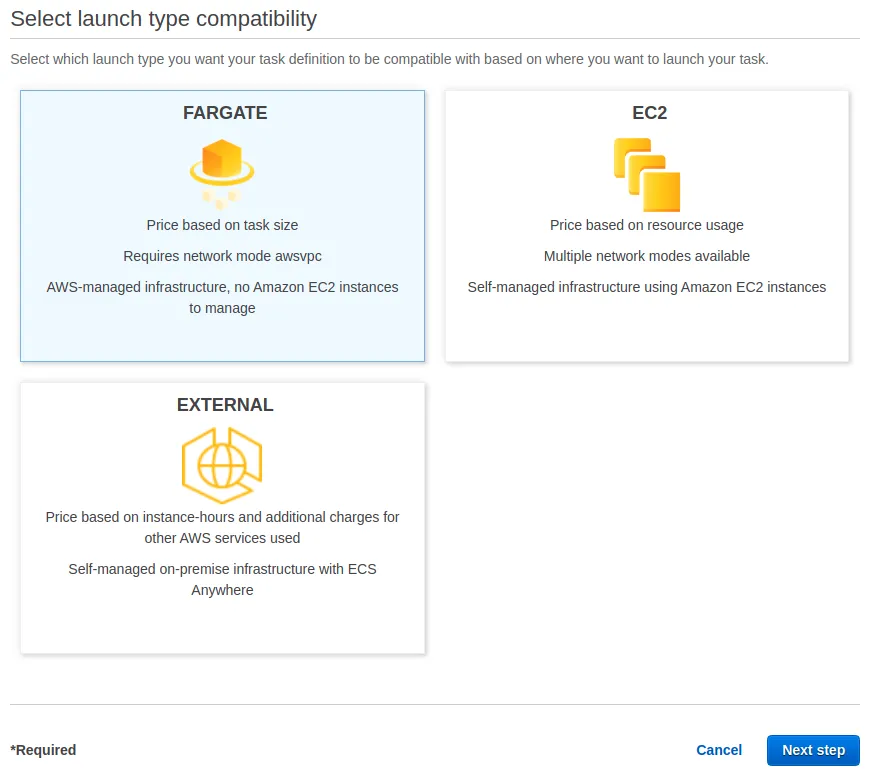
We will use FARGATE here too to manage our clusters and tasks. Click Next step.
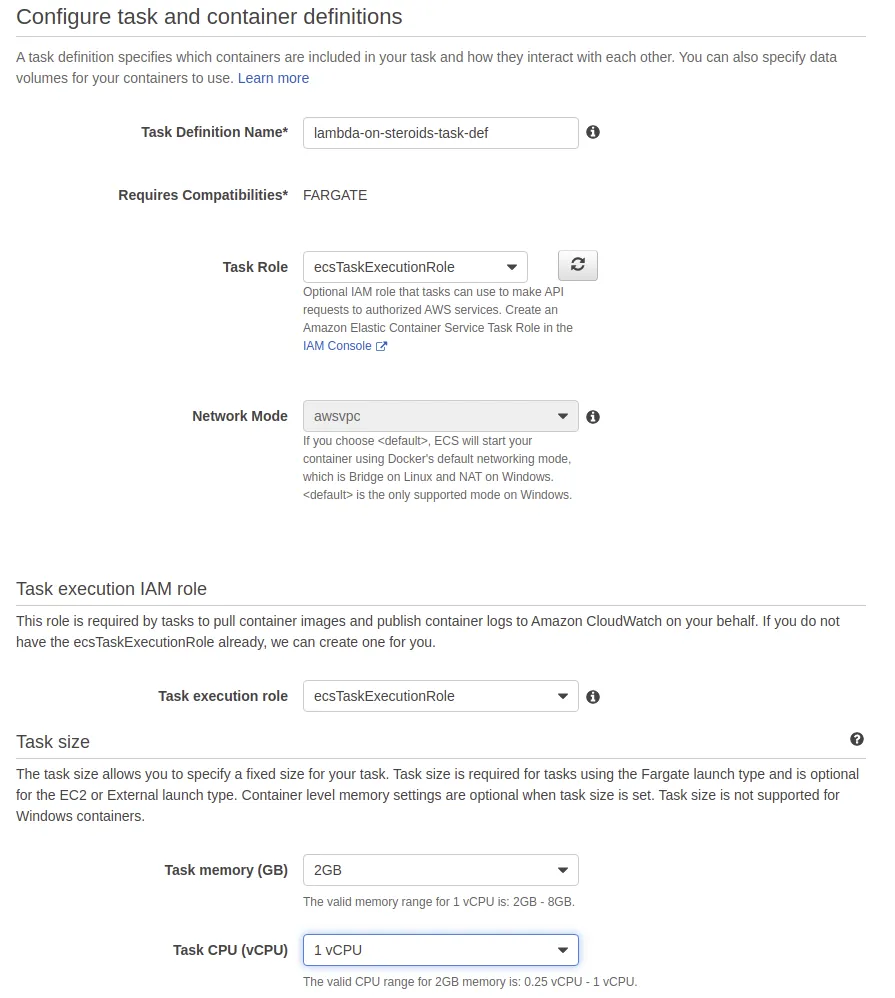
Give your task a name. You can select the amount of default resources you want your container to have; for example, we will use 2 gigs of ram, and a single vCpu but you can always change these for each task you run.
Task Execution Role
You can create a custom task execution role if you want; this role will be used to pull images from ecs, and manage ecs and cloudwatch logs for your task. The console will create one by default, for us that’s okay so we are going with ecsTaskExecutioinRole.
Task Role
The task role is crucial for services using sdks like boto3 or aws-sdk. As this is the role that aws ecs will use to inject permissions into your container for your task to be able to use aws apis. For us the default ecsTaskExecutioinRole role will do just fine.
Container Definition
Click Add container. The major two settings we will use are these ones.
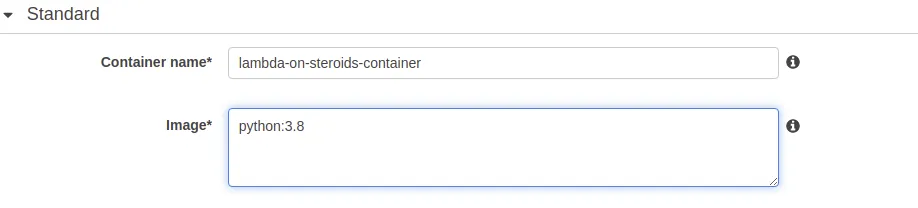
But you can do loads of things with it but for us these two will suffice for a demo. Hit Add and then hit Create. Everything else will be default.
Now that you’ve created a task definition, You can head over to the task definition page and select on your task definition and hit Run Task.
Creating Tasks
Let’s make this image do something. Create a task with the following steps.
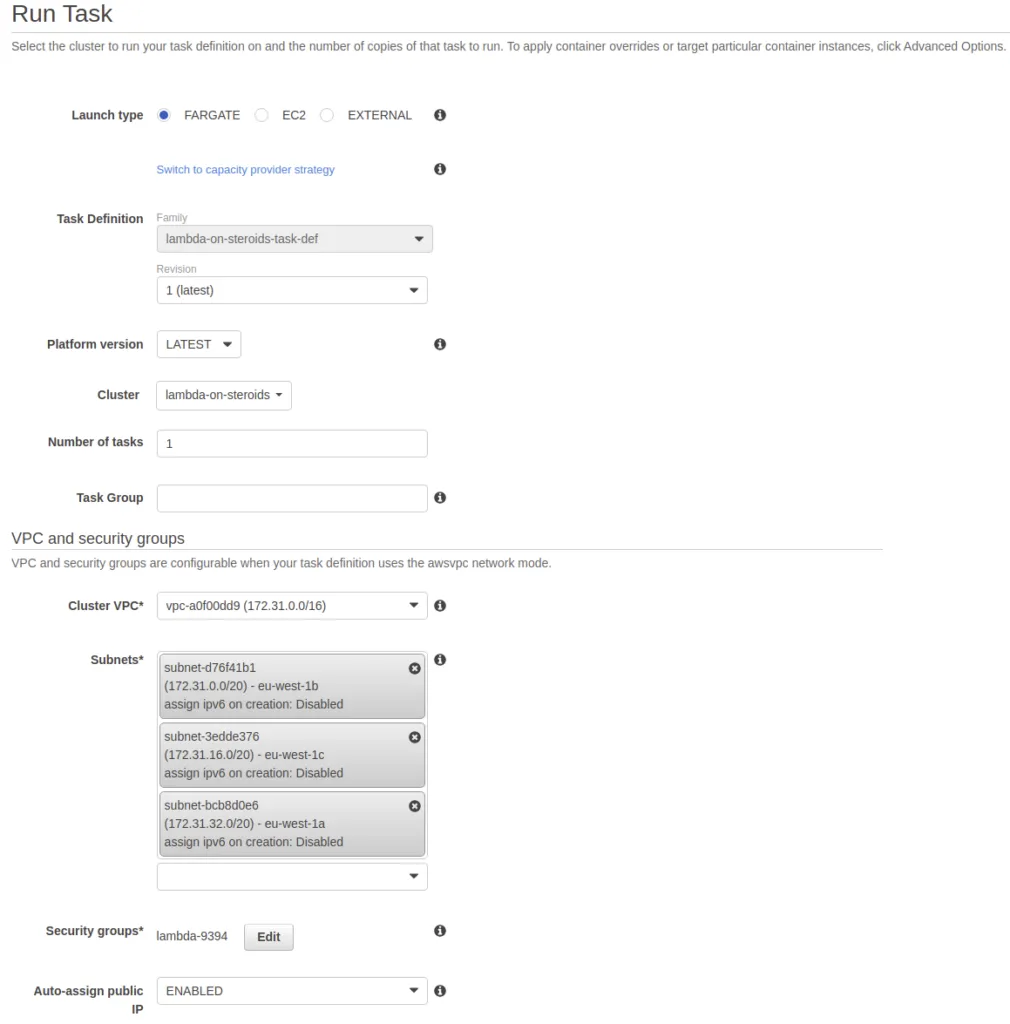
For this account, we already have a vpc and subnets, we are just selecting them and the console automatically assigns a security group for us. You can always create your own. Our launch type will be Fargate. As you can see it automatically picked up the cluster we made in step one otherwise you would have to choose a cluster. Since we are using public images, Auto-assign public ip must be ENABLED.
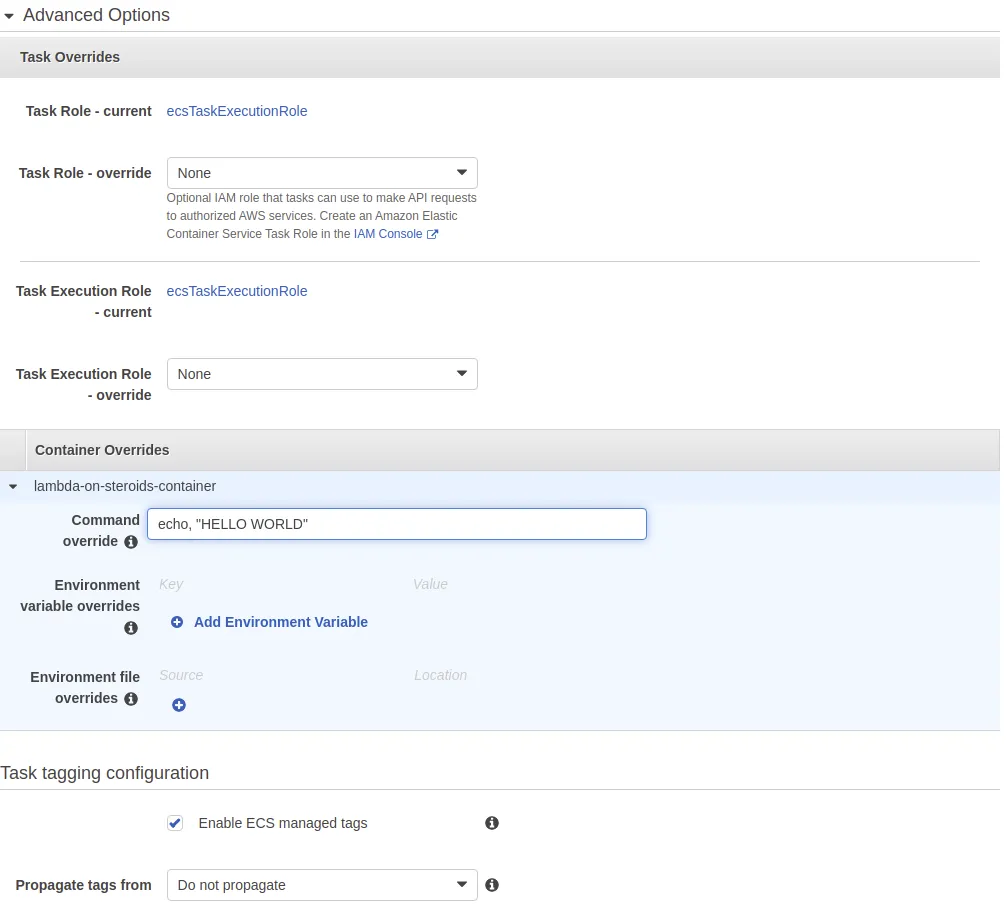
In the Advanced Options, we can override any task definition settings we created, for example, we are overriding the command for our task definition. Note that you must provide the commands in comma separated manner and then hit Run Task. It will take you to your cluster’s tasks option and you will see a task being Provisioned. Click on it and then hit Logs. Wait for the logs to appear and voila;

The Logs are conveniently placed along with the execution.
Now, ecs is not meant to be a lambda substitution, this can be used for tasks that require custom applications and scripts or heavy resources or when you are just not comfortable with the 15 minutes timeout.
Caveats
Not many;
-
- It is slower than a lambda to start up; from my experience it takes around a minute for the container to spin up but it’s faster than ec2
-
- It’s a little pricier than a lambda but cheaper than ec2
That’s all folks. Hope this tutorial was useful for all reading. Take care.
You are on the list
The next letter goes out at the start of the month.